
iOS App Store Direct Integration
We support subscriptions and one off purchases, including consumables, non-consumables and non-renewing subscriptions.
One off purchases arrive through Apple's ONE_TIME_CHARGE notification, which Apple released to production in May 2025. Nothing extra is needed to turn it on: the App Store Server Notification setup below covers both.
1. Apple App Store Server Notifications
Apple Server to Server Notifications are required to enable Insert Affiliate to track subscription events.
You must have the App Store Account role: Account Holder, Admin, App Manager, or Marketing to make these changes.
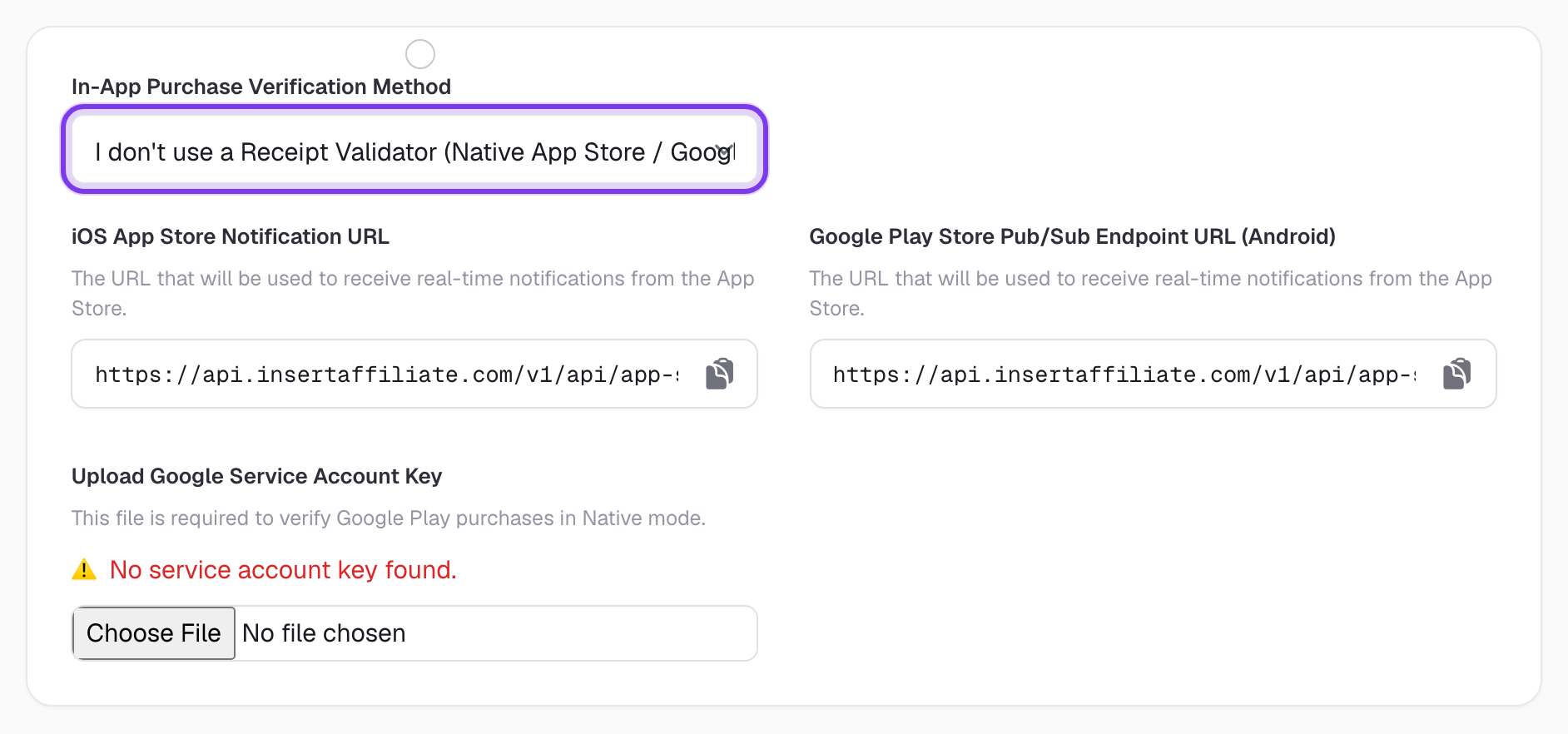
- Within the Insert Affiliate settings (Integrations tab), set your In-App Purchase Verification Method to "I don't use a Receipt Validatior (Native App Store / Google Play Integration)."
- After changing this setting, a new section will appear called "App Store Server Notifications", containing a URL - you will need this for step 5.
Click to view full size
- Sign in to App Store Connect, selecting your app.
- In the left-hand navigation, select App Information.
- Scroll down to the App Store Server Notifications section.
- Set the Sandbox Sever URL and the Production Server URL to the App Store Server Notifications URL provided in the Insert Affiliate settings.
Already using these URLs for your own server?
Apple allows one Production URL and one Sandbox URL per app. If your own server already receives App Store Server Notifications, keep Apple pointed at your server and have it forward each notification to Insert Affiliate. Your billing and entitlement handling stays exactly as it is.
To forward a notification, send the request body Apple sent you, unchanged, to your Insert Affiliate App Store Server Notifications URL:
- Use
POSTwithContent-Type: application/json. - The body is Apple's
{ "signedPayload": "..." }JSON. Do not decode, re-sign or alter it. - Use the full URL from your settings, including its query string, since that identifies your account.
- Forward both production and sandbox notifications to the same URL.
We verify every signedPayload against Apple's root certificate, so a forwarded notification is trusted exactly as if Apple had sent it directly. We respond with 200 once it is processed. If you get any other response, retry. Duplicate deliveries are safe, because a notification we've already processed isn't counted twice.
Forward in the background, after you have responded to Apple, so that a slow or failed forward never delays your own acknowledgement.
// Express example: after handling Apple's notification yourself
app.post('/apple-notifications', express.json(), async (req, res) => {
  await handleNotification(req.body.signedPayload) // your existing logic
  res.sendStatus(200)

  fetch(process.env.INSERT_AFFILIATE_NOTIFICATION_URL, {
    method: 'POST',
    headers: { 'Content-Type': 'application/json' },
    body: JSON.stringify({ signedPayload: req.body.signedPayload }),
  }).catch((err) => console.error('Insert Affiliate forward failed', err))
})
2. Set Your iOS Bundle Identifier
Insert Affiliate binds each Apple receipt to your app's bundle identifier, so a genuine receipt from a different app can't be credited to your account. This must be set for Native verification to work securely.
- Go to Settings → Business & Profile tab.
- Find the iOS Bundle Identifier field and enter your app's bundle identifier (e.g.
com.yourcompany.yourapp). - Click Save.
You can find your bundle identifier in Xcode: select your project → select your app target → General tab → Bundle Identifier field.
Until this is set, your dashboard will show a warning banner reminding you to add it.
3. Integrate the Insert Affiliate SDK
To complete the integration, follow the final integration steps detailed in the Insert Affiliate SDK for your specific platform: