
Affiliate Agreement
Give your affiliates a written agreement and keep a record of who has accepted it. Insert Affiliate provides a lawyer-written template contract you can complete for your programme. Once you publish your finished version, every affiliate is asked to read and accept it in their dashboard.
Overview
The Legal tab in Settings lets you:
- Download a lawyer-written template: a contract between your business and your affiliates, drafted for app affiliate programmes
- Publish your agreement: upload your finished PDF so your affiliates can read it
- Collect acceptance: each affiliate ticks a box to accept, with no printing or signing
- Keep a record: see who has accepted, who has not, and the date and time of each acceptance
The agreement is between you and your affiliates. Insert Affiliate is not a party to it, and does not review or approve what you publish.
Before You Start
The template was written by lawyers for app affiliate programmes, under the law of England and Wales. It is still a general starting point, not legal advice for your situation. Take your own legal advice before using it, particularly if you or your affiliates are based somewhere else.
You do not have to use our template. You can publish any agreement you already have, as long as it is a PDF.
Step 1: Download the Template
- Go to Settings and open the Legal tab
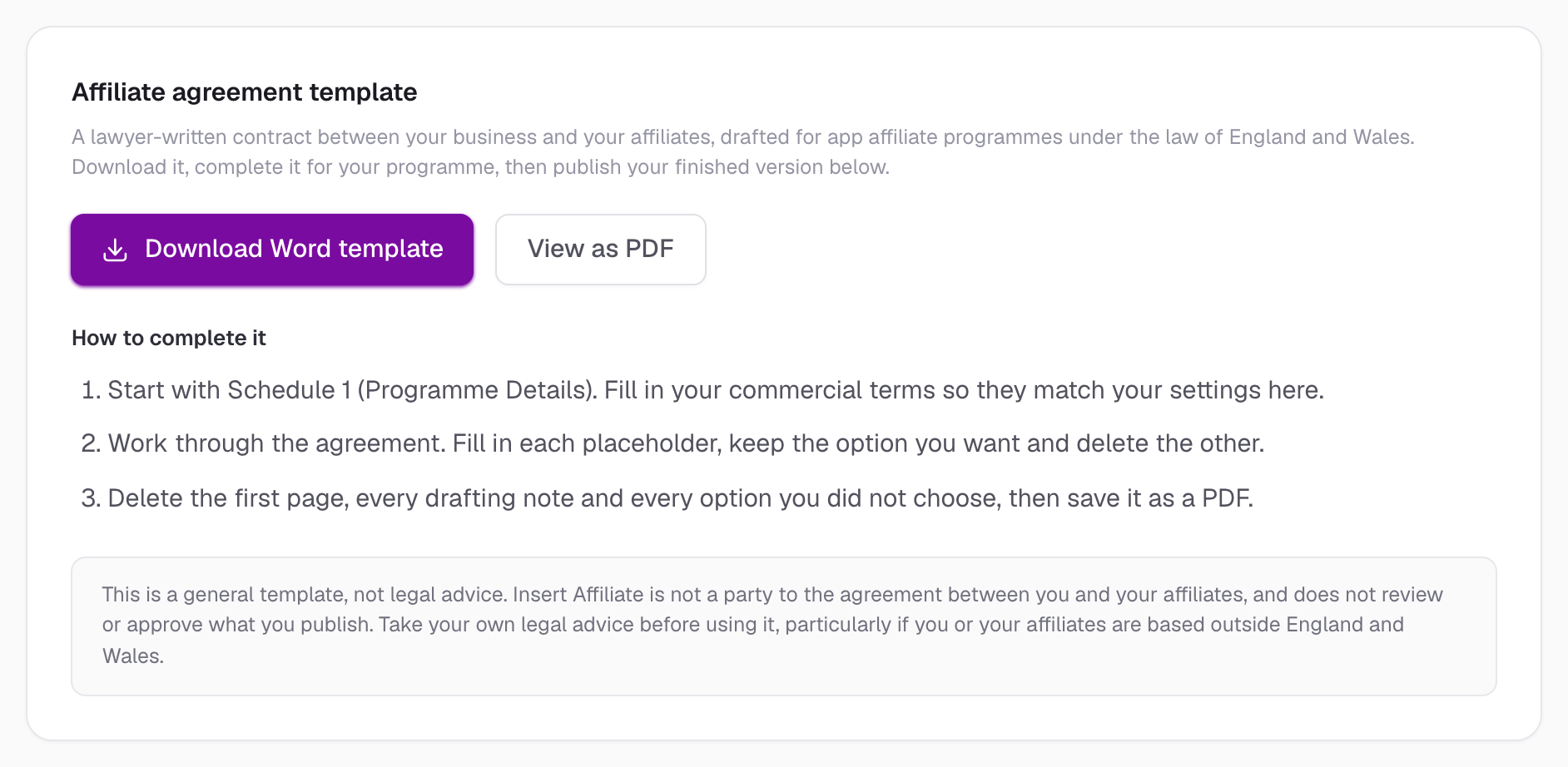
- In Affiliate agreement template, click Download Word template. You can also click View as PDF to read it first
Click to view full size
Step 2: Complete the Agreement
Open the Word file and work through it:
- Start with Schedule 1 (Programme Details). Fill in your commercial terms, such as commission rate and payment timing, so they match your settings in Insert Affiliate
- Work through the agreement. Fill in each placeholder in square brackets. Where the template offers options, keep the one you want and delete the other
- Clean it up. Delete the first page, every drafting note and every option you did not choose
- Save it as a PDF
Choose Online Acceptance
The template lets you choose how affiliates enter into the agreement. If you want affiliates to accept in their dashboard, keep the online acceptance wording and delete the signature block, as the drafting notes explain. Under that wording, accepting online has the same effect as a signature, so nobody has to print, sign or send anything back.
Step 3: Publish Your Agreement
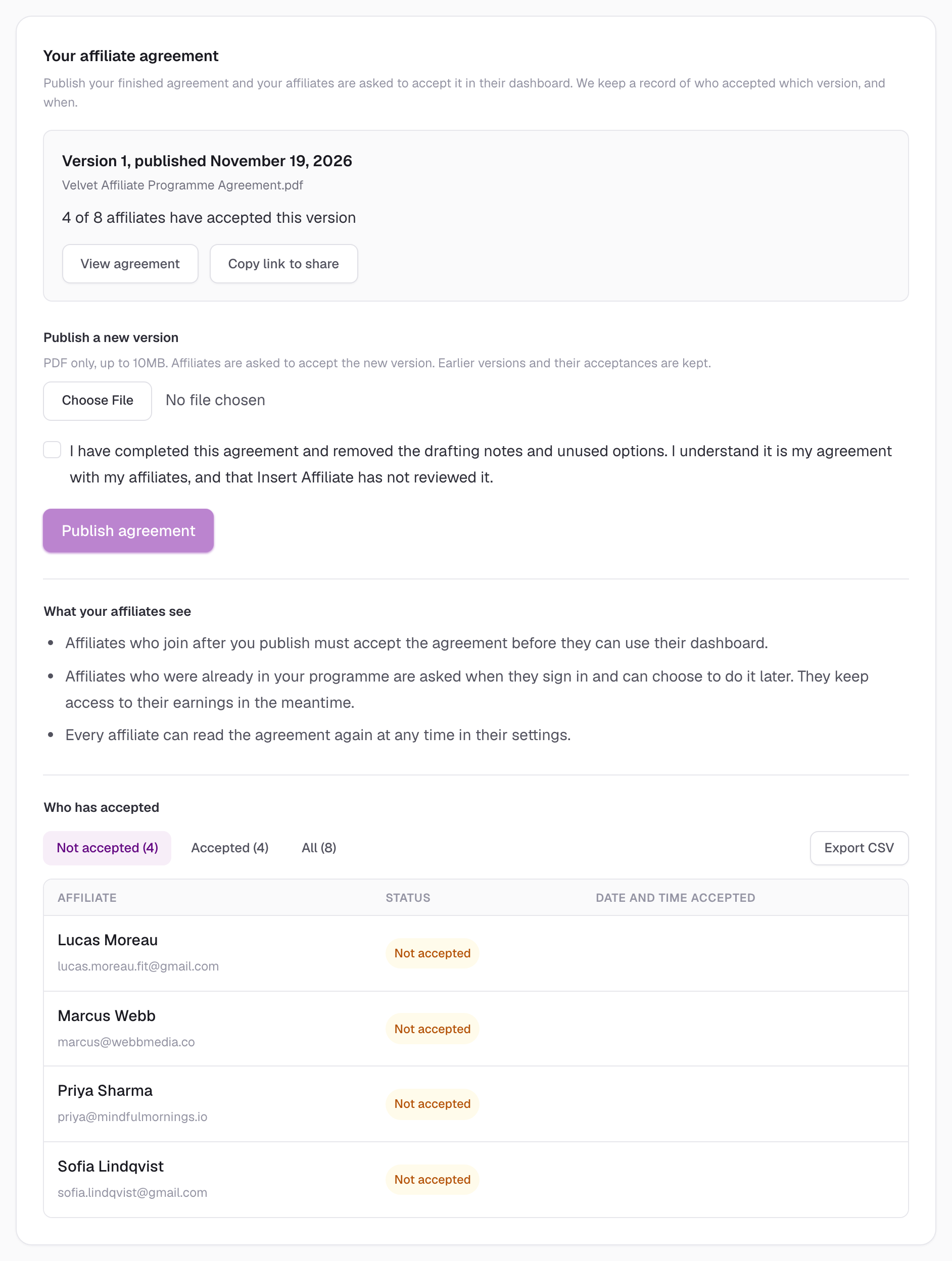
- In the Legal tab, scroll to Your affiliate agreement
- Click Choose File and select your finished PDF (up to 10MB)
- Tick the box to confirm you have completed the agreement and removed the drafting notes
- Click Publish agreement
Click to view full size
Once published you can:
- View agreement: open the PDF your affiliates see
- Copy link to share: copy a link to the PDF, for example to send to someone before they join
A published agreement cannot be edited or deleted. To change it, publish a new version.
What Your Affiliates See
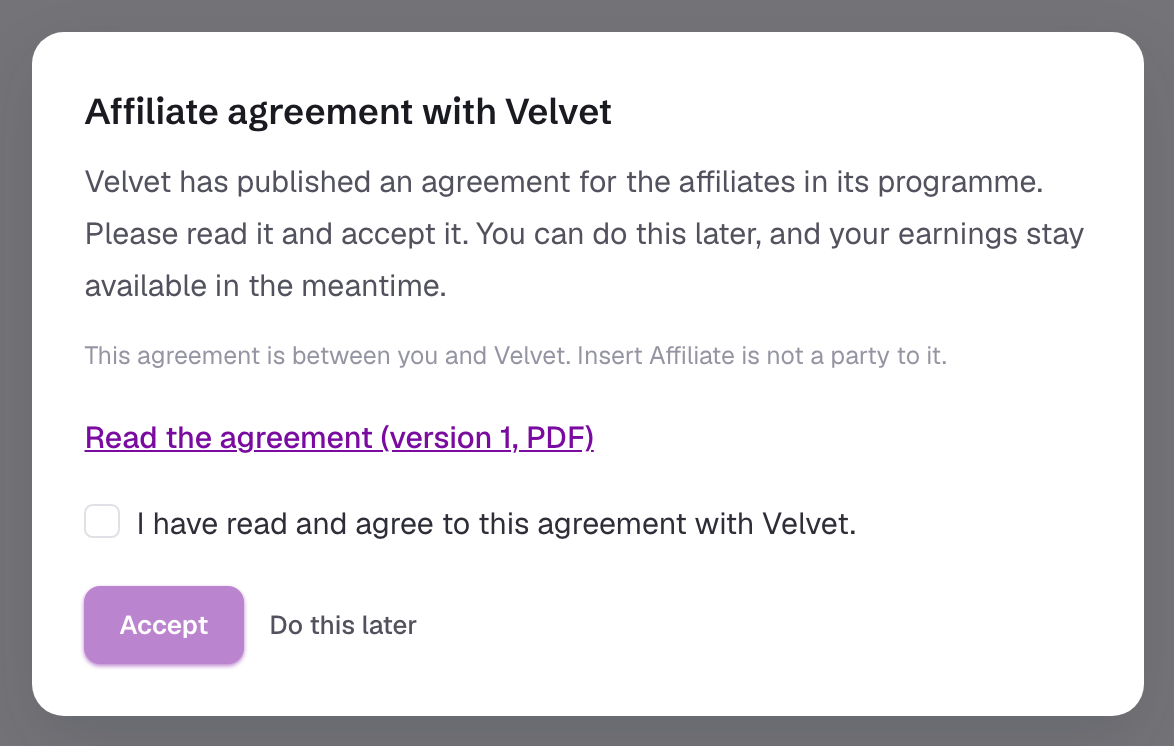
When an affiliate signs in, a dialog asks them to read the agreement and tick a box to accept it.
What happens next depends on when they joined:
- Affiliates who join after you publish must accept the agreement before they can use their dashboard
- Affiliates who were already in your programme can choose Do this later. They keep access to their earnings and are asked again the next time they sign in
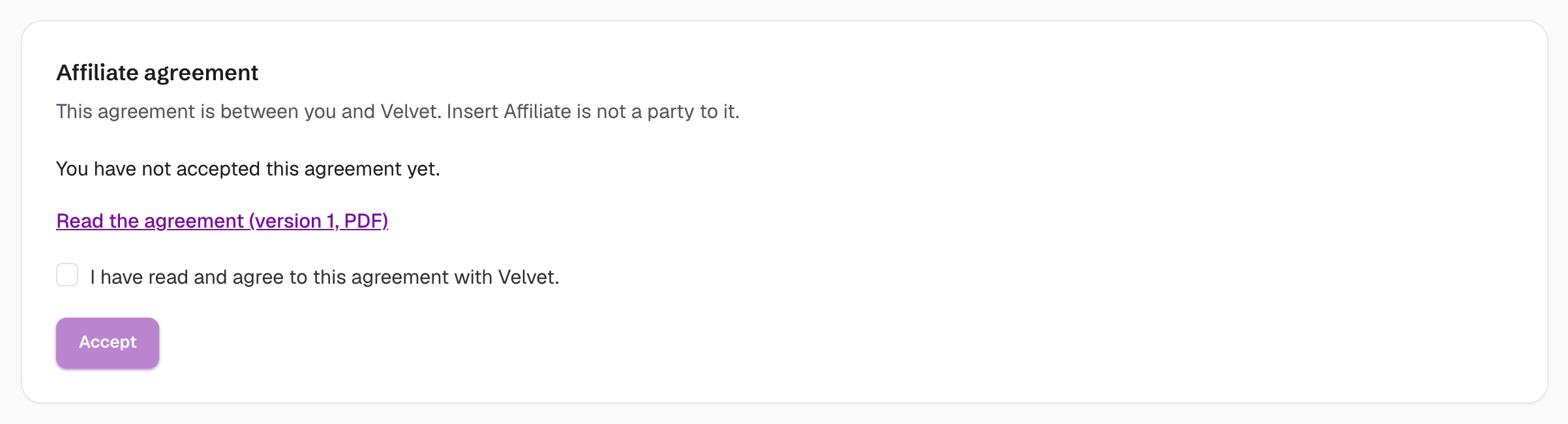
Every affiliate can read the agreement again at any time, and accept it if they have not yet, under Settings in their own dashboard.
Click to view full size
See Who Has Accepted
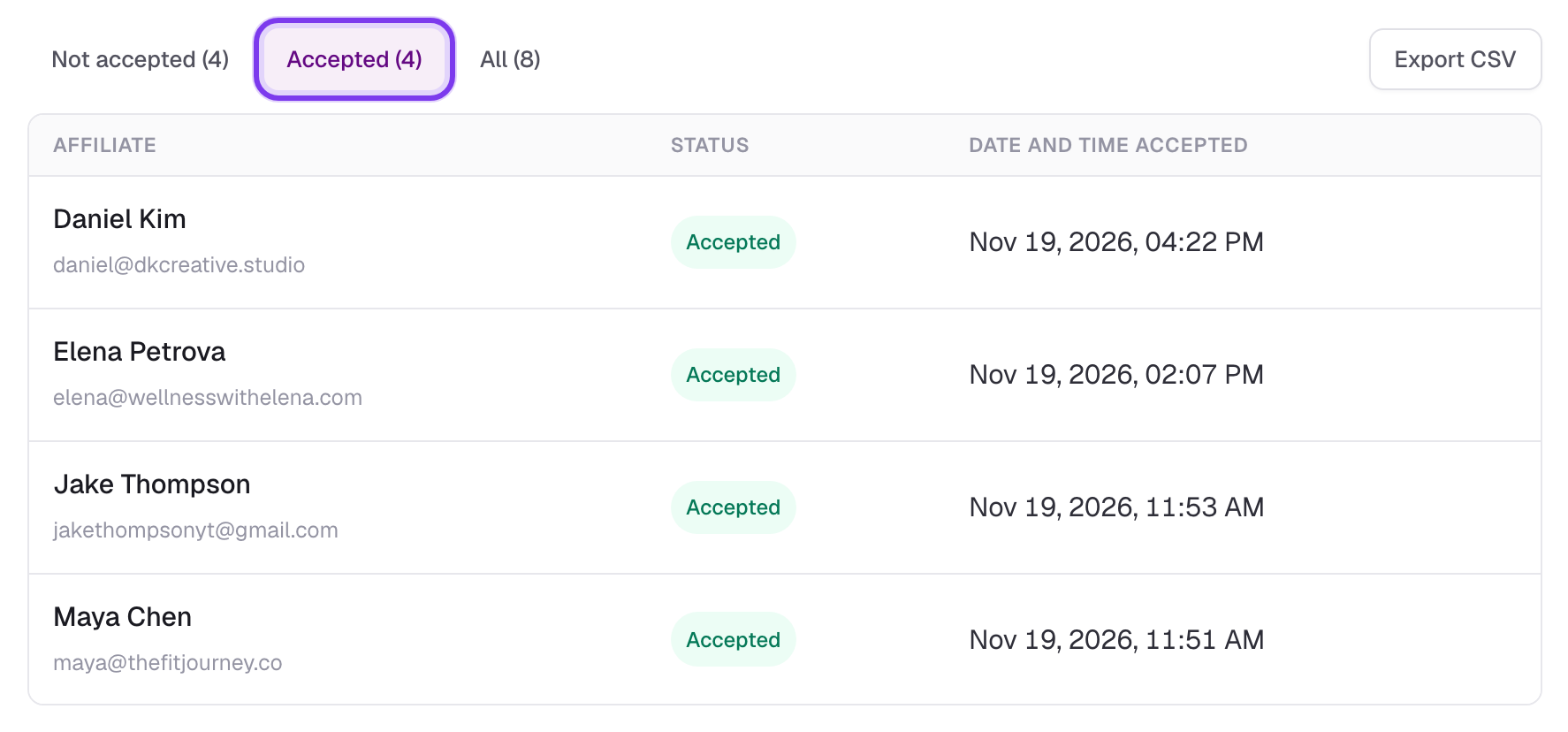
The Who has accepted list in the Legal tab shows every affiliate in your programme against the current version of your agreement.
- Not accepted: the affiliates you may want to follow up with. The list opens here
- Accepted: who has accepted, with the date and time
- All: everyone in one list
Click to view full size
Click Export CSV to download the list, including the exact time of each acceptance, for your own records.
What Is Recorded
For each acceptance we record the affiliate, the version they accepted, a fingerprint of the exact PDF, and the date and time. The record is written by Insert Affiliate when the affiliate clicks Accept. Neither you nor the affiliate can edit it afterwards.
Updating Your Agreement
To change your agreement, publish a new version in the same place:
- Go to Settings and open the Legal tab
- Under Publish a new version, choose your updated PDF
- Tick the box and click Publish agreement
Every affiliate is then asked to accept the new version. Earlier versions and their acceptances are kept, and the Who has accepted list switches to the new version.
Check what your agreement says about changing its terms, such as how much notice you need to give, before you publish a new version.
Good to Know
- PDF only: the file must be a PDF of 10MB or less
- Anyone with the link can open the PDF: do not include anything in it that you would not want shared
- Affiliates are not emailed when you publish. They see the agreement the next time they sign in, so let them know if it is time-sensitive
- Accepting is per version: an affiliate who accepted version 1 is asked again when you publish version 2
Support
Need help with your affiliate agreement? Contact us:
- Email: [email protected]
- Use the in-app support options
We can help you with the feature, but we cannot give legal advice on the content of your agreement.